Start with the order on screen
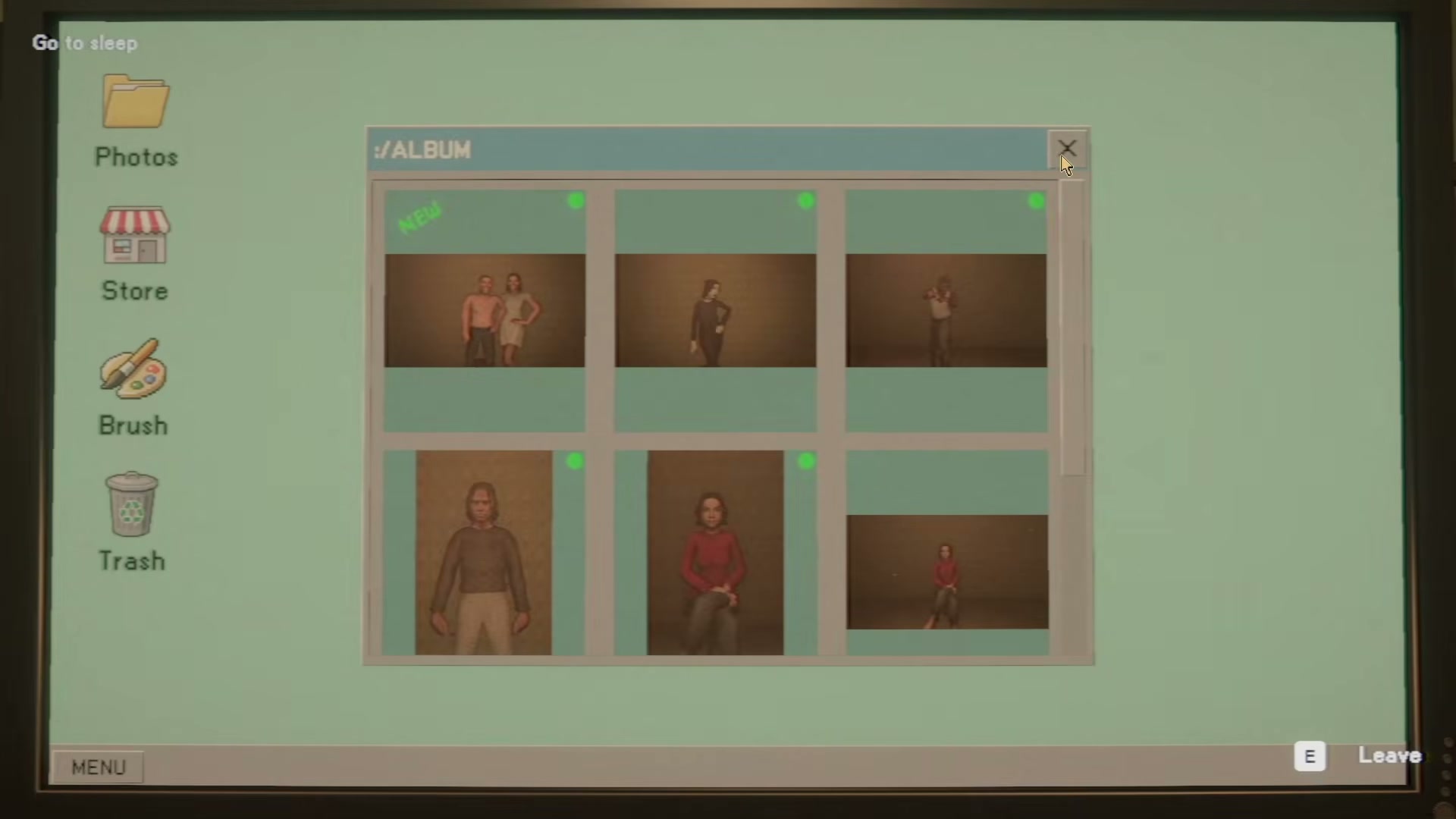
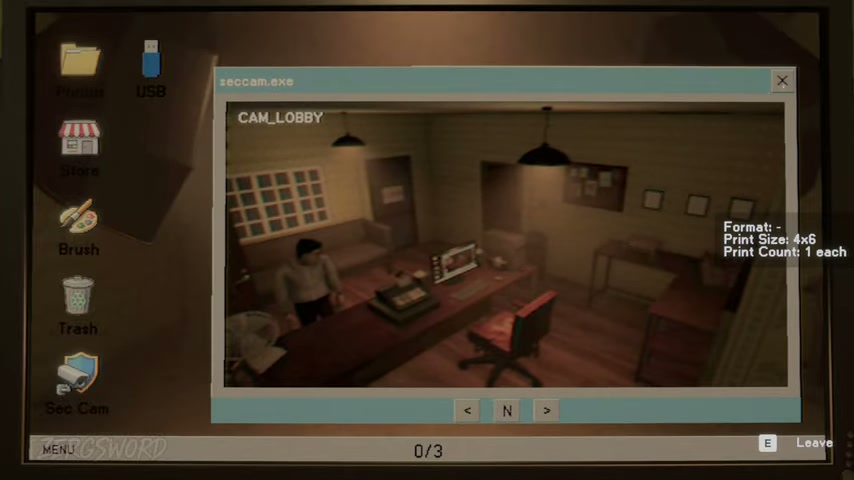
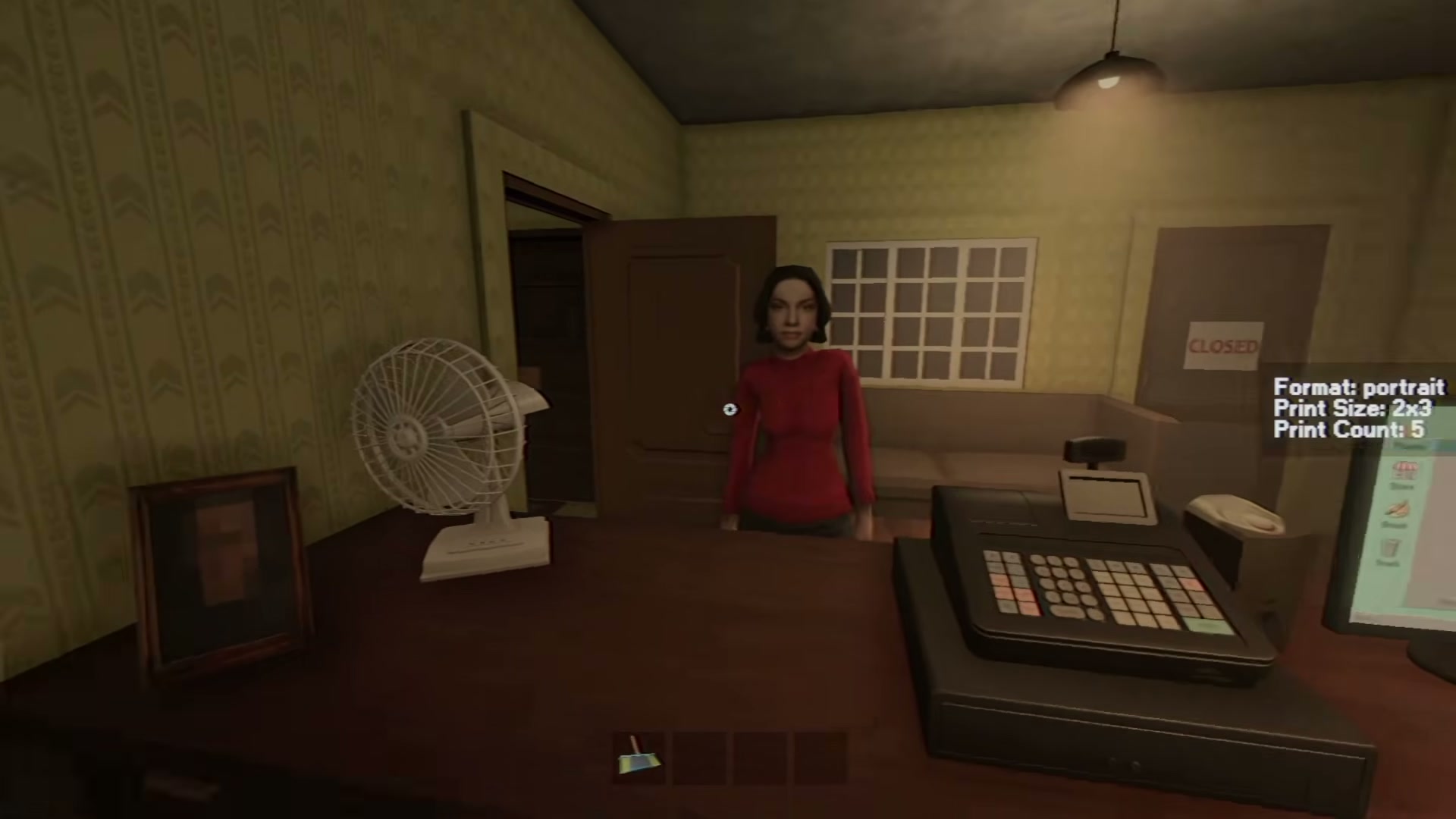
Orders show size, quantity, and orientation. Use those details as your final checklist. This example shows a 3x4 landscape order with three copies, alongside the current paper stock and ink level.
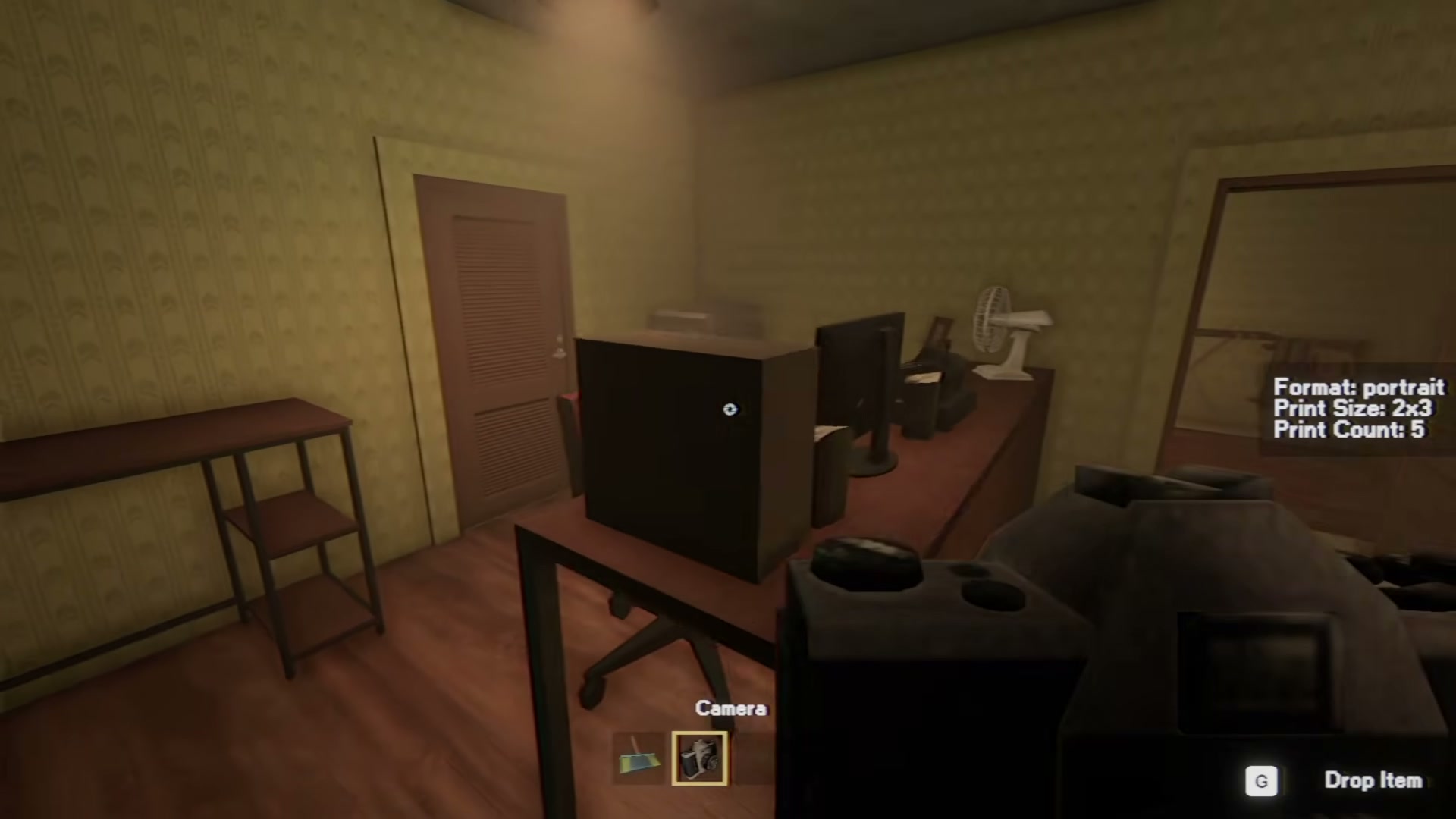
One print-screen example: 3x4, three copies, landscape, with Paper Stock and Ink Level visible.
| Specification | Detail |
|---|---|
| Observed print-size examples | 2x3, 3x4, and 4x6 |
| Observed request fields | Size, quantity, and orientation |
| Observed routes | Camera, USB, and film roll |
Camera route
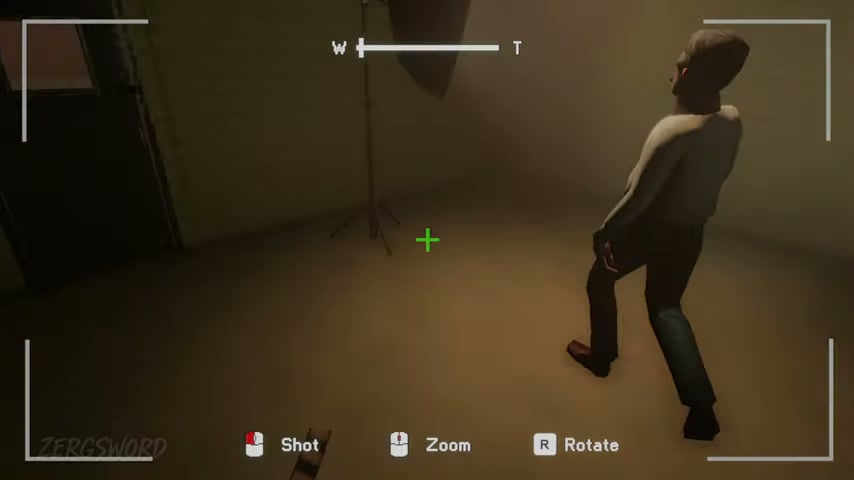
For a camera order, frame the requested subject, take the photo, and prepare the output shown on the request. Camera framing and zoom are part of the route; use the prompts visible in your game rather than assuming a universal button sequence.
USB route
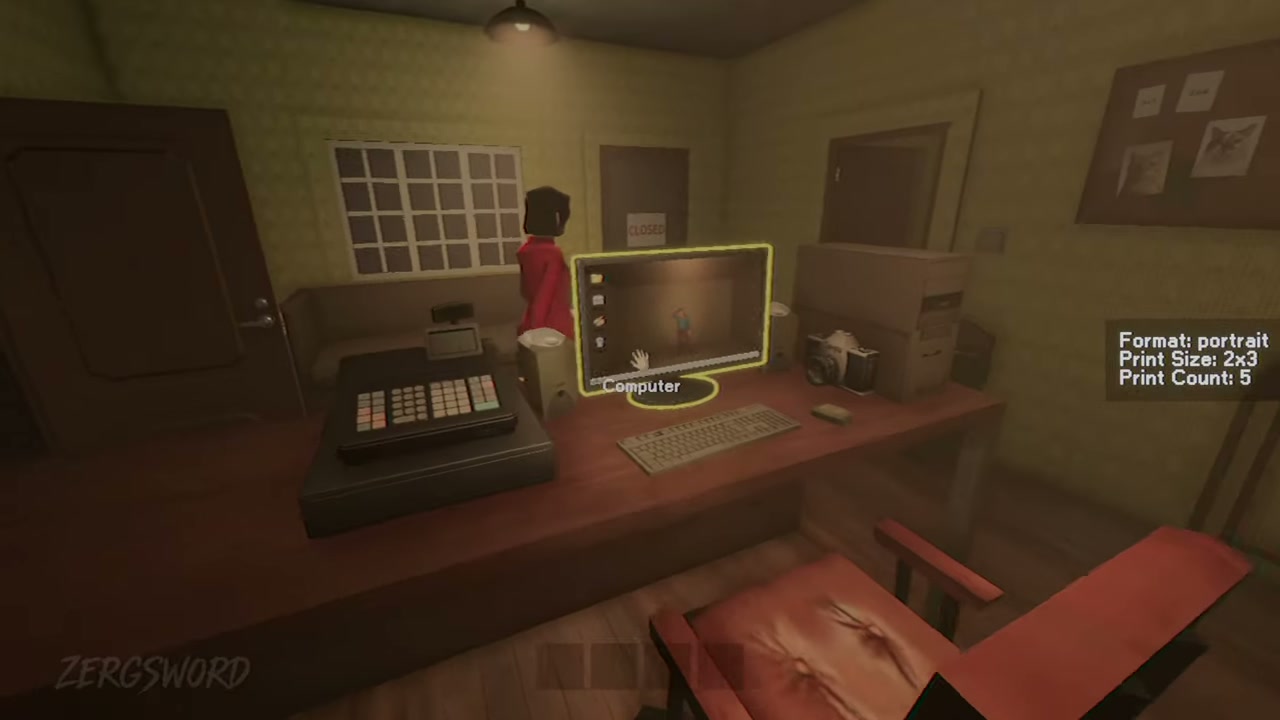
Some customers provide image material on USB. This route starts from the customer’s files instead of a fresh camera capture. Keep the visible request beside you while selecting and preparing the required photo.
Film-roll route
A film-roll order goes through development before printing. The darkroom labels the trays in order: Developer (10 sec), Stop (5 sec), then Fixer (5 sec). Follow the timer labels in your game if they differ, then print from the developed negatives.
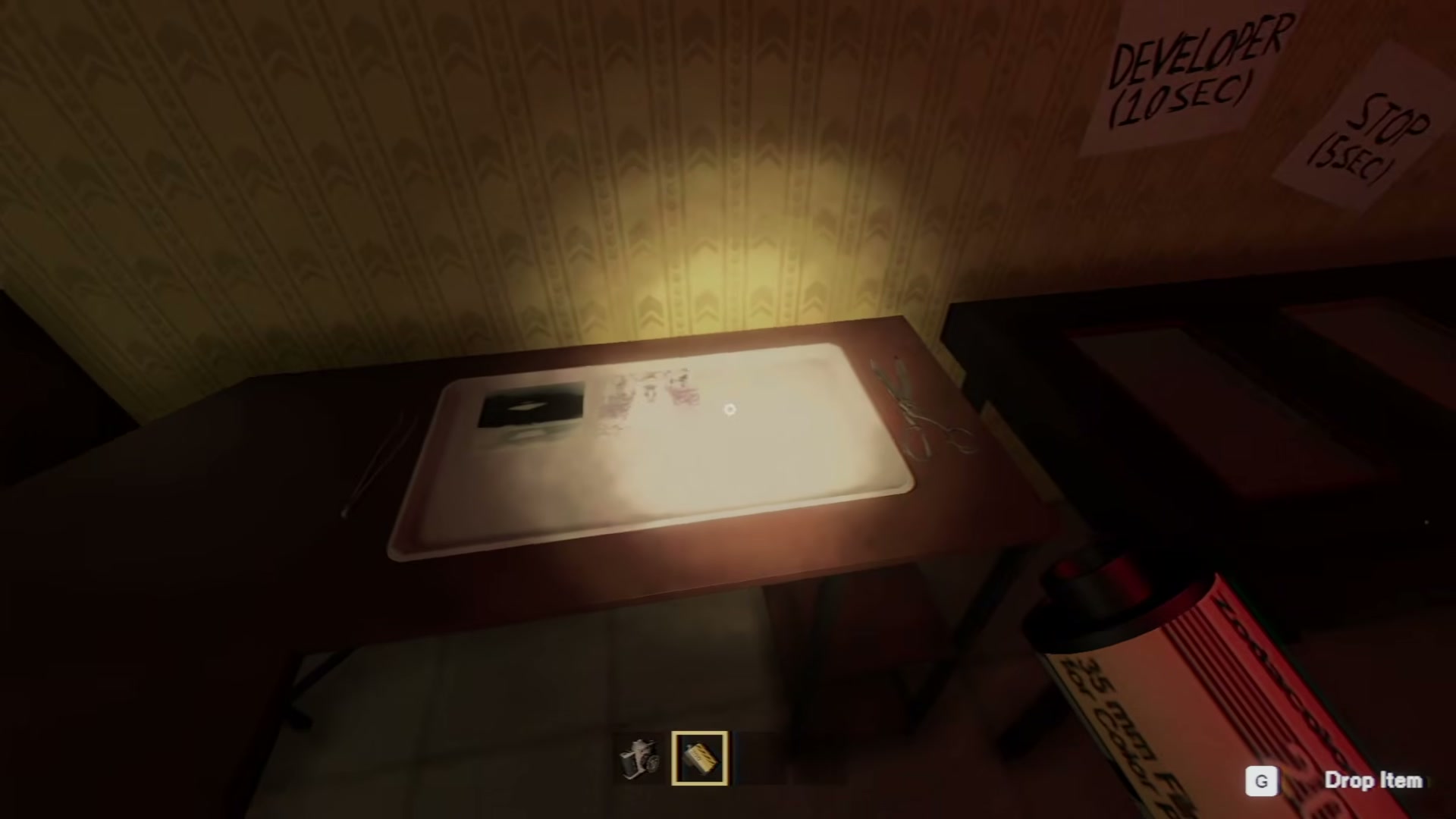
Darkroom labels visible in the frame: Developer 10 sec → Stop 5 sec → Fixer 5 sec.
Before delivery
- Match the visible size, quantity, and orientation.
- Use the route the current request actually presents.
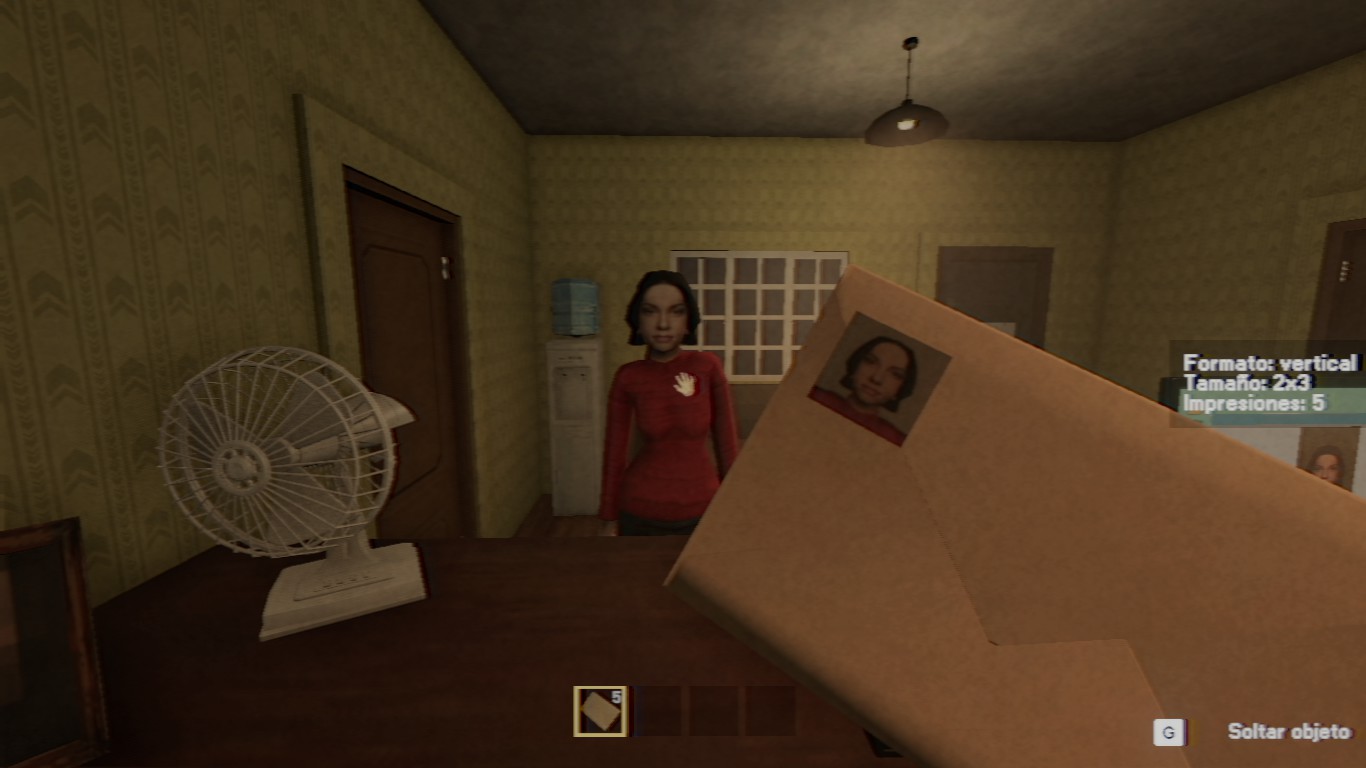
- Prepare the completed order in an envelope whenever the live order flow calls for delivery packaging.
- If a result is rejected, record the request and change one visible variable at a time.